
Care Audit Rules provides an indicator when you fill out a code to indicate if you want to use a different code, leave a message, or have a message pop up to explain a rule for that specific code first. Let's delve into how to manage Care Audit Rules in the system.
Topics Covered
Add Care Audit Rules
To get started, perform the steps below:
Navigate to the System Menu > select Practice Settings > Care Audit Rules.
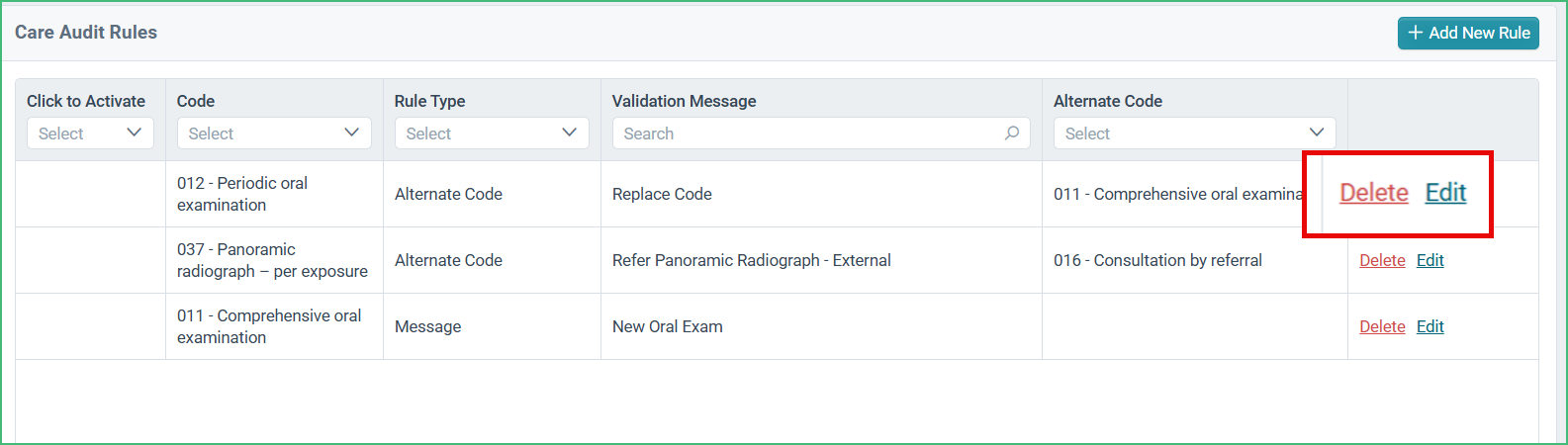
In the Care Audit Rules grid:
- You can filter care audit rules by Code, Rule Type, Validation Message, or Alternate Code.
On the right-hand side of the Care Audit Rules page:
- Click +Add New Rule.
Within Add Rule Modal,
- Select the required Code from the list.
- Select the Rule Type.
- Select Message to trigger a message.
- Select Alternate Code to trigger an alternate code. Choose the required alternate code for this option.
- Enter the validation Message for the care audit rule.
- Click Save.
- Click Delete on the intended care audit rule to remove it.
- You can click Edit to update the intended care audit rule
Trigger Care Audit Rule in Chart
Select the patient using the Global Search bar > click Chart.
Select +Code.
- Select the intended treatment code that has been configured with a care audit rule.
- Once the treatment code has been added, click on the same treatment code (configured with the care audit rule) within the grid.
- Select Complete to open the Care Audit Alert.
- If the code was configured with a Message care audit rule, you will receive a Care Audit Alert with a Message.
- To continue, click Proceed.
- If the code was configured with an Alternate Code, you will receive a Care Audit Alert with an option to choose the configured Alternate Code(s).
- You can choose to select the alternate code or Proceed with the original code.
Practices can use this quick guide to learn how to add and configure Care Audit Rules within the system.